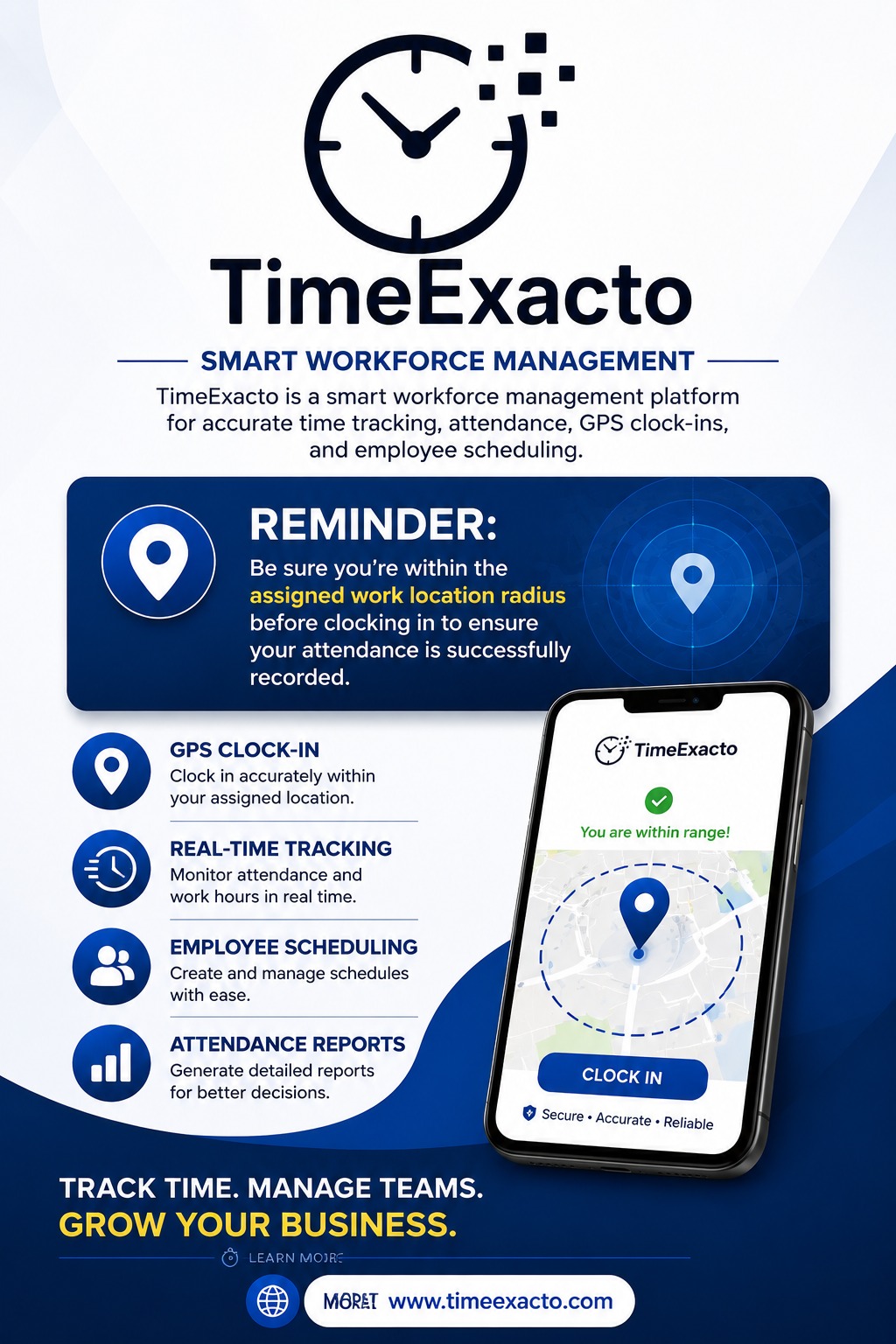
CLOCK-IN SUPPORT

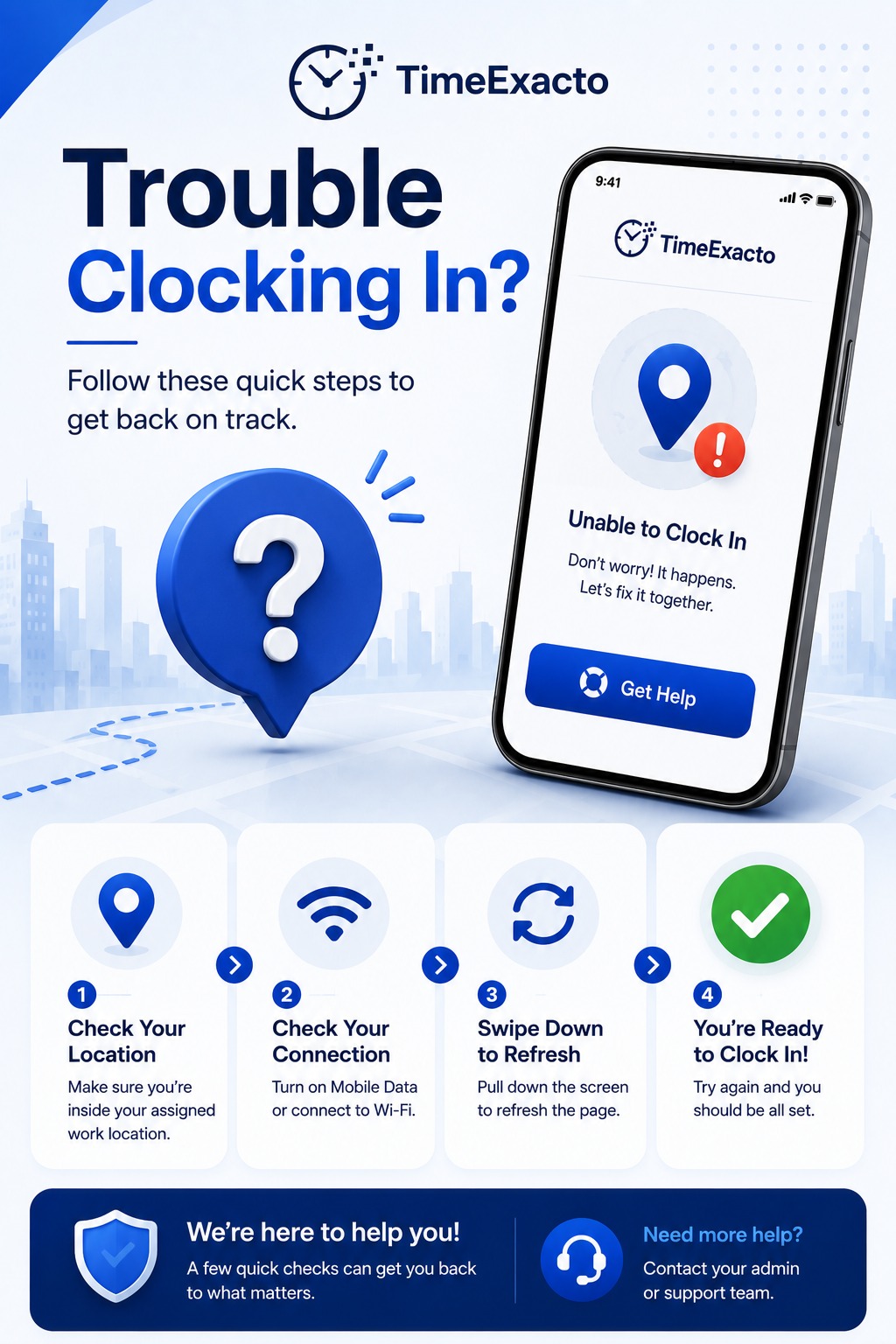
Trouble clocking in?

Follow these steps in order to check your work location, internet connection, GPS access, and TimeExacto status.

TROUBLESHOOTING STEPS

Complete these four quick checks.

Most clock-in concerns can be corrected without changing your account or contacting an administrator.

1

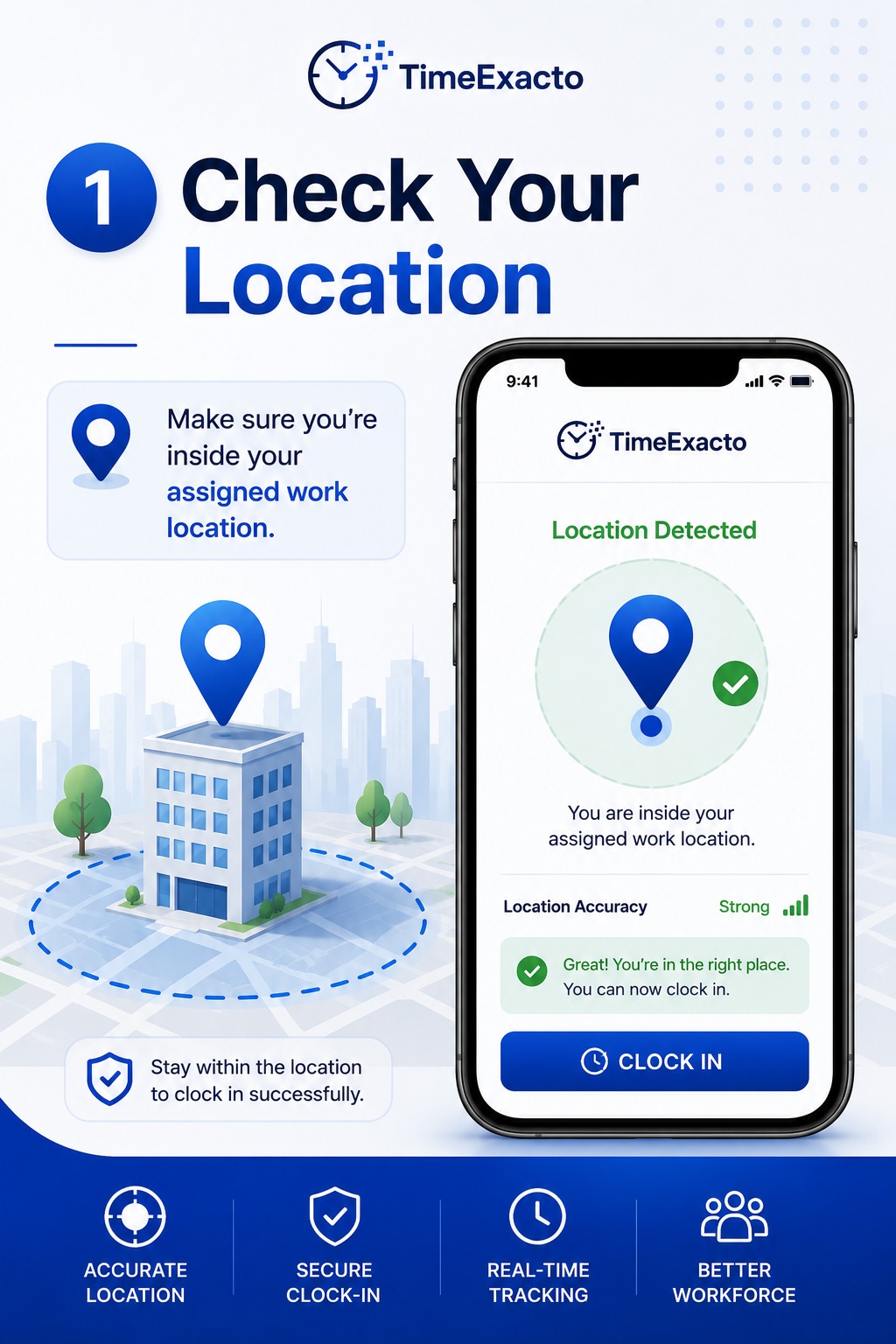
Check your location

Make sure you are physically inside your assigned work location before attempting to clock in.

  • Open the TimeExacto dashboard.
  • Review the assigned work location.
  • Move inside the approved location radius.
2

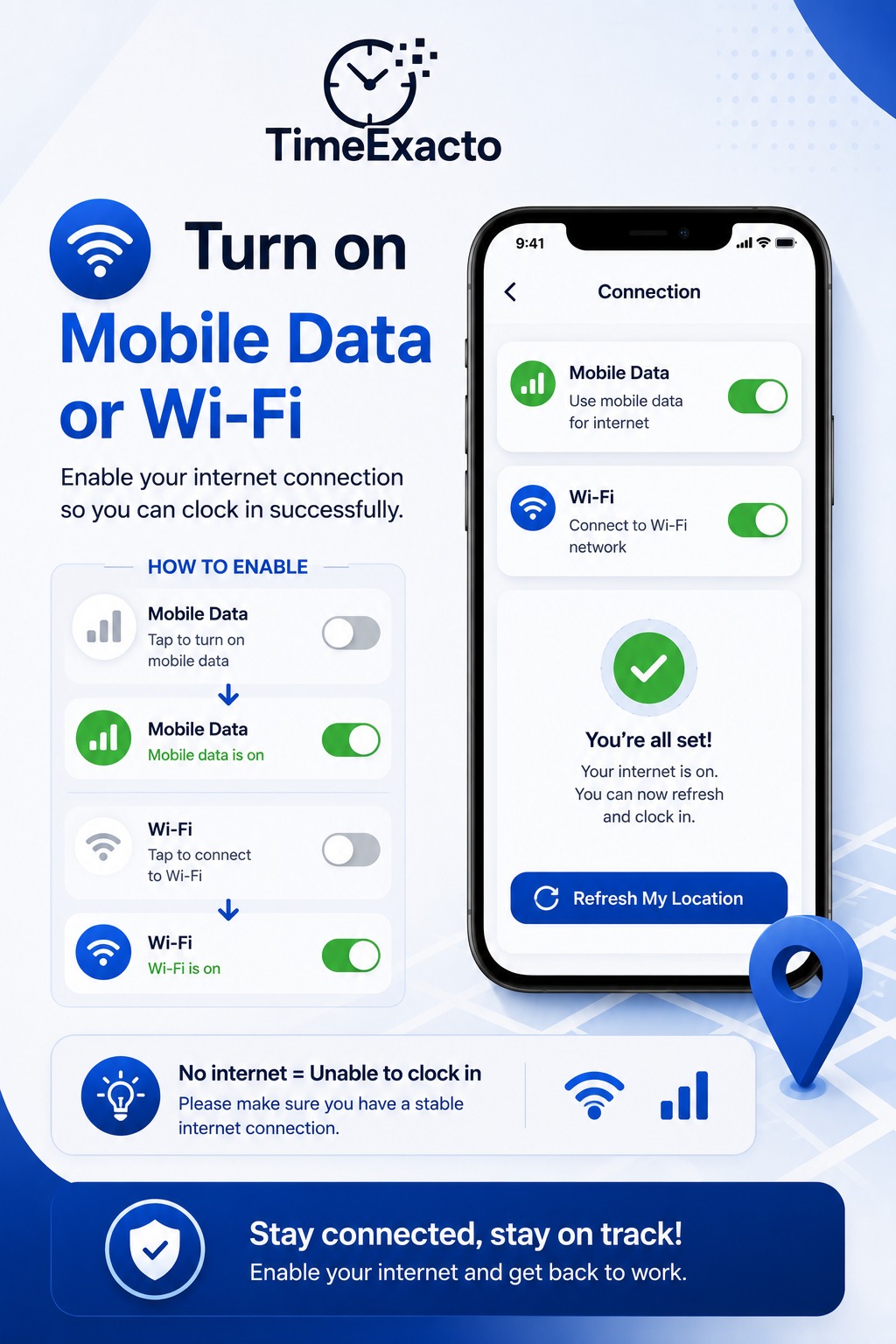
Turn on internet access

TimeExacto requires a stable connection to confirm your location and submit attendance activity.

  • Turn on mobile data or Wi-Fi.
  • Confirm that the device has internet access.
  • Reconnect if the signal is unstable.
3

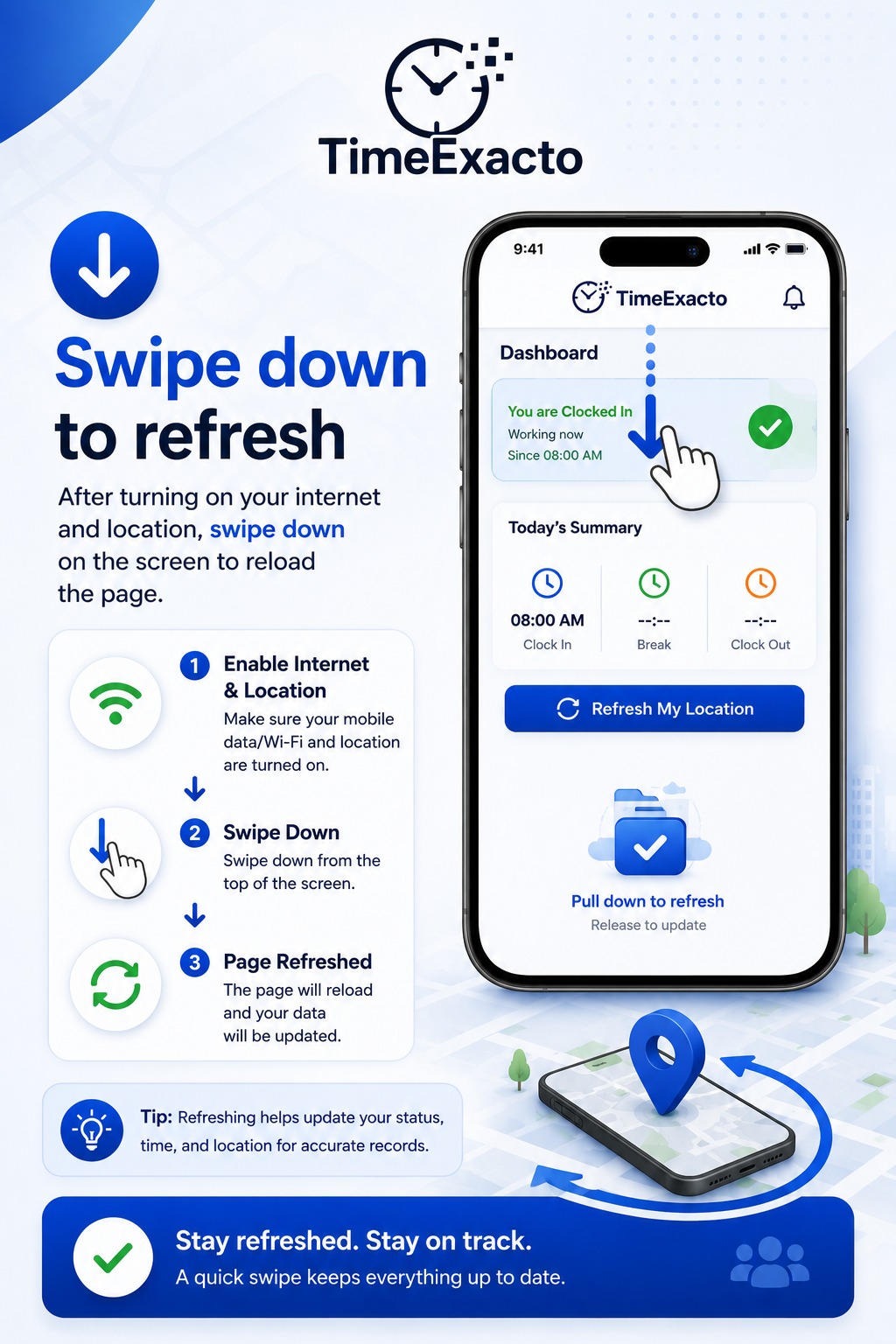
Swipe down to refresh

Refresh the dashboard after turning on internet and location services.

  • Return to the TimeExacto dashboard.
  • Swipe down from the top of the screen.
  • Wait for the location status to update.
4

Try clocking in again

Once the work location is detected, try the clock-in process again.

  • Confirm that you are inside the work site.
  • Use the clock-in control.
  • Wait for the success confirmation.
VISUAL GUIDES

Step-by-step TimeExacto instructions.

Add the instructional images you previously created to the image folder shown below.

Check your assigned work location
Turn on mobile data or Wi-Fi
Swipe down to refresh
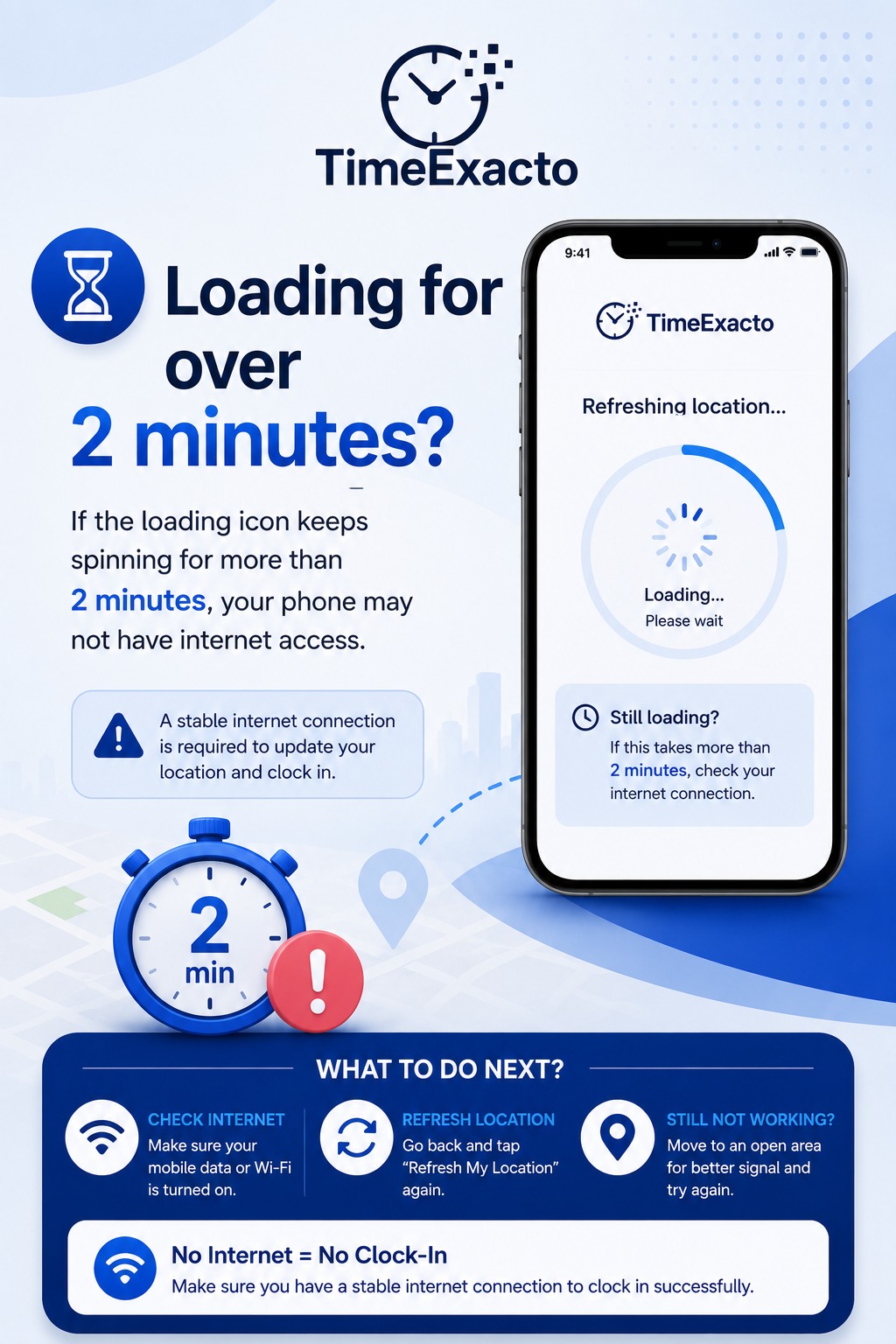
Loading for more than two minutes
Trouble clocking in
Trouble clocking in
Assigned work location reminder
STILL NOT WORKING?

Send the issue to support.

Include the employee name, assigned location, time of the issue, error message, and a screenshot.

Contact Support